

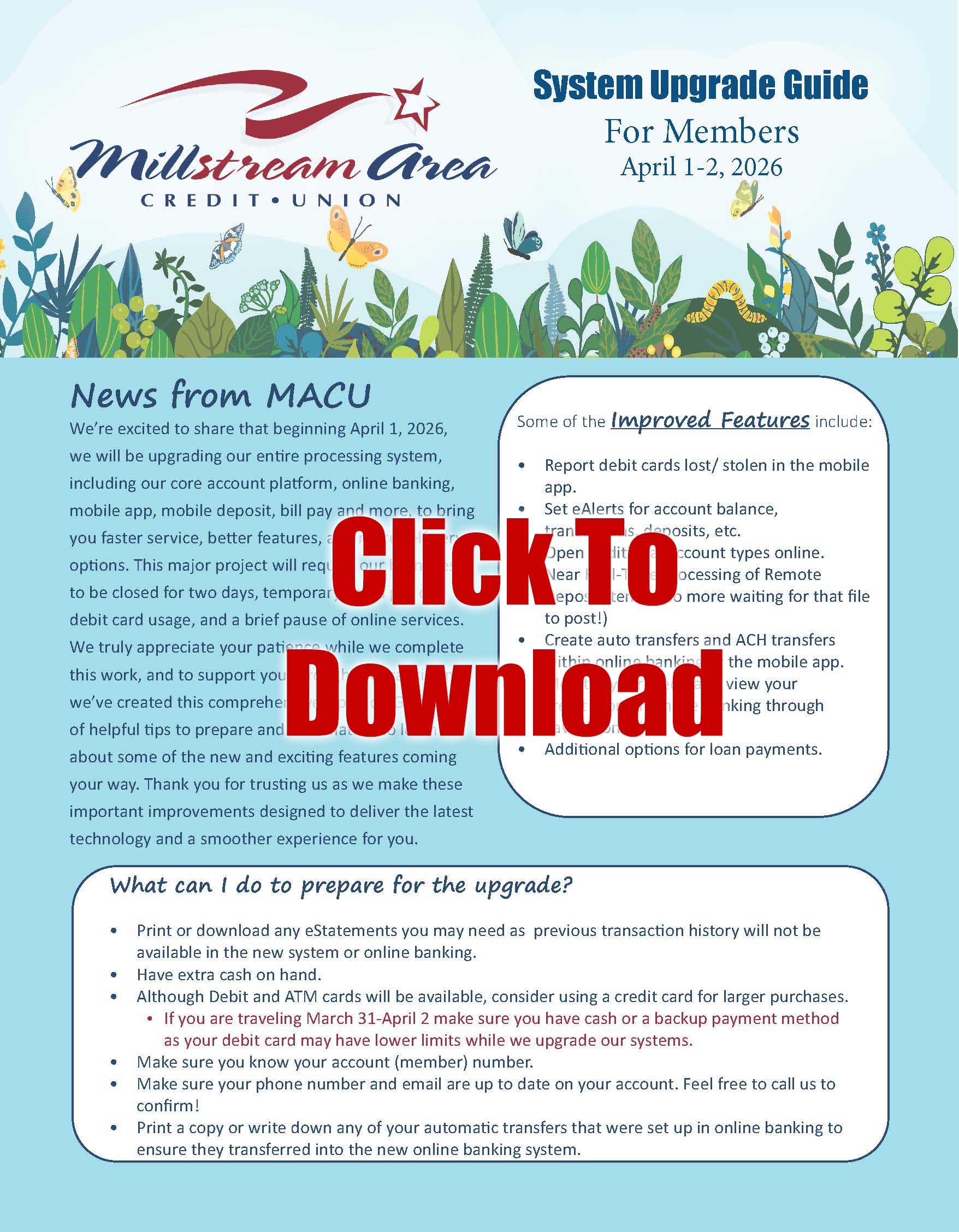
We’re excited to share that beginning April 1, 2026, we will be upgrading our entire processing system, including our core account platform, online banking, mobile app, mobile deposit, bill pay and more, to bring you faster service, better features, and more self‑serve options. This major project will require our branches to be closed for two days, temporary limits put on debit card usage, and a brief pause of online services.
Upgrade Guide For Members
We truly appreciate your patience while we complete this work, and to support you through the transition, we’ve created this comprehensive Upgrade Guide of helpful tips to prepare and information to learn about some of the new and exciting features coming your way. Thank you for trusting us as we make these important improvements designed to deliver the latest technology and a smoother experience for you.
How to prepare for the upgrade
- Print or download any eStatements you may need as previous transaction history will not be available in the new system or online banking.
- Have extra cash on hand.
- Although Debit and ATM cards will be available, consider using a credit card for larger purchases.
- If you are traveling March 31-April 2 make sure you have cash or a backup payment method as your debit card may have lower limits while we upgrade our systems.
- Make sure you know your account (member) number.
- Make sure your phone number and email are up to date on your account. Feel free to call us to confirm!
- Print a copy or write down any of your automatic transfers that were set up in online banking to ensure they transferred into the new online banking system.
Frequently Asked Questions
Will my account number change?
No. Member account numbers will remain the same.
Yes. Please see instructions for It’sMe247 in the Online Banking section.
No, your VISA credit card will not be affected by the upgrade.
Yes. Please see instructions for It’sMe247 Mobile in the Mobile Banking section.
The mobile app must be certified by Apple’s App Store and the Google Play Store. This can take time and although we expect it sooner we can’t control this piece of the upgrade.
No, there are no changes to checks. When a new check order is placed the MICR number will be updated.
No, payments will need to be set up in the new system.
Schedule
- Read this upgrade guide in its entirety. Watch our Website and Facebook page for notifications of services as they come online.
- We suggest verifying account balances and making an appropriate cash withdrawal prior to closing on Tuesday, March 31st.
- As of 6PM, the following services will go offline: Online Banking, Audio Teller, and Mobile Banking. ATM & Debit Cards will be subject to offline limits until Thursday, April 2nd.
- ACH deposits received by 6PM will be posted prior to systems going offline. ACH deposit received after that time will be posted on Thursday, April 2nd.
- Offline: Mobile App, Online Banking, Web Bill Pay, and Audio Teller. ATM & Debit Cards will be subject to offline limits until Thursday, April 2nd.
- If you normally receive your paycheck early (Thursday) please be aware that it may not be available until Friday, April 3rd.
- ATM & Debit Card limits return to normal.
- NEW It’sMe247 Online Banking will be available; first-time login instructions are provided in the online banking section.
- Call Center: Our credit union phone number (419) 422-5626 will be answered by a call center as we expect an increased call volume in the initial days after the system upgrade. If the lines are busy, you can also reach the call center at 419-408-3616. The call center can assist you with establishing your new online and mobile banking sign-on, relay your account balance(s), transfer money, etc. The call center will be available 9:00am to 5:00pm Monday-Friday, through Thursday, April 16.
SATURDAY, APRIL 4, 2026
All MACU branches will be OPEN!
Extended Hours until 2pm.
All branch lobbies will be open.
Week of APRIL 6, 2026
New Mobile Apps will be available within the first week of the upgrade pending app store certification by Apple & Google. Enrollment instruction can be found in the mobile banking section.
What can I do to prepare for the upgrade?
- Print or download any eStatements you may need as previous transaction history will not be available in the new system or online banking.
- Have extra cash on hand.
- Although Debit and ATM cards will be available, consider using a credit card for larger purchases.
- If you are traveling March 31-April 2 make sure you have cash or a backup payment method as your debit card may have lower limits while we upgrade our systems.
- Make sure you know your account (member) number.
- Make sure your phone number and email are up to date on your account. Feel free to call us to confirm!
- Print a copy or write down any of your automatic transfers that were set up in online banking to ensure they transferred into the new online banking system.
Online Banking

- Improved Loan Applications
- Open & Rename Shares/Savings
- Purchase New Certificates of Deposit
- Place a Stop Payment on a Check
- Set up Scheduled Transfers
- “Jump” to your joint accounts without logging out of your primary account. Please contact MACU to set up this feature.
- Adjust how your direct deposit and other electronic deposits are handled.
- Review loan payoff amounts
- Download transaction activity to QuickBooks
- Read important messages from MACU
- Set up transfers to/from your account at another financial institution
- Securely pay someone else through Pay A Person
- Enrollment: Your existing online credentials will not be carried over. You will need to enroll in It’sMe247 Online Banking, which can be done starting on April 2.
- Authentication: It is important you have a correct cell phone number and/or email address on file to receive an authentication code.
- Accessing It'sMe247 Online Banking: You will continue to use www.millstreamcu.com to access our Online Banking platform.
- Visit MillstreamCU.com.
- In the login box at the top left of the screen click on First Time User.
- You will be taken to a screen to enter your Account Number and the Social Security Number of the Primary Account Holder.
- You will choose to receive a text message or email for an authentication code to the cell phone or email address on file.
- Follow the on-screen instructions to finish setting up your account.
Bill Pay

- Access: Bill Pay can be accessed through It’sMe247 Online Banking and the Mobile App. No additional sign-on or passwords to remember.
- Next Day Delivery: Most electronic payments are delivered as soon as the next business day.
- Instant Access: You can enroll in Bill Pay directly from It’sMe247 Online Banking and begin using it immediately.
- Easy to Set Up: Follow simple point and click instructions.
- Set Up Recurring Payments: Like mortgage, utilities, insurance premiums, daycare, etc.
- Pay Multiple Bills simultaneously without having to leave It’sMe247.
- View Bill Pay History without having to leave It’sMe247.
- eBills: You will have the option to receive bills electronically if offered by the billing company.
- Checking: A checking account is required to utilize Bill Pay.
Mobile App

- Apple users will have the option to upgrade their current MACU app after the system upgrade.
- Android users will need to delete your old app and search for MACU It’sMe247 in the app store. If you have not already established your new sign-on credentials in online banking, you will need to follow the instructions from the Online Banking section.
- Login Credentials: You will use the same username, password, and security questions for both It’sMe247 Online Banking and Mobile App. Refer to the Online Banking section for instructions.
- View Pending Transactions
- Use Card Controls to lock & unlock your card, set spending alerts, & more.
- View your credit score through SavvyMoney.
- Customizable favorite features.
- Deposit checks from wherever you are, whenever it is convenient for you.
- Send money to others through Pay A Person.
Text Banking

Get quick information about your MACU accounts with our new It’sMe247 Text Banking. With Text Banking you can send a text command and receive generated replies for account balances. This service is available 24/7/365. There is no fee from MACU to use Text Banking, but your mobile carrier’s standard text messaging fees will apply.
- Log in to It’sMe247 Online Banking at MillstreamCU.com.
- Click the ‘Go Mobile’ button on the toolbar.
- Select Text Banking Home.
- Follow the prompts to enroll.
- After enrollment, text commands to IM247 (46247).
- A list of text commands will be provided to you during the enrollment process.
SavvyMoney

- Credit Score Analysis
- Credit Score Simulator
- Financial Checkup
- Education & Tools
- Monitoring & Alerts
New Payment Options
(Current external transfers will not carry over to the new system and will need to be re-established.)

A quick and convenient way to make loan payments! With MessagePay, members can receive payment reminders via text message and subsequently pay with their preferred mobile device. Payment methods allowed include ACH and debit cards.
QuickBooks Integration
QuickBooks Online Express Web Connect
- Complete a final transaction download.
- Complete last transaction update before the change to get all of your transaction history up to date.
- Accept all new transactions into the appropriate registers.
- Select Banking from the left column.
- Click the account you want to disconnect, then click the Pencil Icon on the corner of that account box.
- Click Edit Account Info.
- Check the box next to Disconnect this Account on Save.
- Select Save and Close.
- Repeat steps for any additional accounts that apply.
QuickBooks Online Web Connect
- Complete a final transaction download.
- Complete last transaction update before the change to get all of your transaction history up to date.
- Accept all new transactions into the appropriate registers.
Audio Teller
Get account balances, review recent transactions, make transfers, and more through our secure touchtone telephone banking system.
First-time use:
Call 419-422-5626, choose option 1, and enter your member number.
- Enter your temporary pin (last four digits of the primary account holders social security number).
- You will then be prompted to enter a new PIN and press #.
- Confirm your new PIN.
- Account inquiries, including balances and recent transactions.
- Funds transfer.
- Hear current rates or calculate estimated loan payments.
- Change your PIN.
- Change to a different member number.
- Other CU Services-including locations and hours.
- Repeat this menu.
- End call.
- CU Talk Tutorial (press* to exit the tutorial and return to the main menu).
New Account Suffixes
New Account Suffixes
| Share Type | Current | New Suffix |
| Regular Savings | 1, 6, 240, 250, 400, 500, 800, 810, 820, 120, 130 | 000 |
| Special Savings | 20,50,80,110 | 010-029 |
| Christmas Club | 120,130 | 040-041 |
| Money Market | 300 | 050-051 |
| Primary Checking | 9, 3, 4, 140, 150, 170, 180 | 100-104 |
| Interest Bearing Checking | 10 | 100-104 |
| Fresh Start Checking | 70 | 100-104 |
New Loan Suffixes
| Loan Type | New Suffix |
| New Vehicle | 500-509 |
| Used Vehicle | 520-529 |
| Motorcycle | 540-549 |
| Recreational Vehicle | 560-569 |
| UCC Secured | 580-589 |
| Share Secured | 600-609 |
| Unsecured | 620-649 |
| Home Equity | 700-709 |


